
Tutorial 1: Introduction to Python and Jupyter#
In this small tutorial, we will download a real dataset from Natural Earth (free, public domain geodata) and display it in three different ways.
test
Working with Jupyter Notebooks#
Jupyter Notebooks are documents that can be used and run inside the JupyterLab programming environment, containing computer code and rich text elements (such as text, figures, tables, and links).
A couple of hints#
Run a selected cell with Shift + Enter (or the Run/Play button).
Use Markdown cells for text and Code cells for Python code.
0. Install dependencies#
Run the next cell once to install the required libraries. If the libraries are already installed, rerunning it is safe.
# Install required libraries (safe to re-run)
%pip install geopandas folium matplotlib --quiet
1. Download the dataset#
We use the Natural Earth 1:10m populated places dataset. It contains cities and towns worldwide as points.
Source: https://www.naturalearthdata.com/
License: Public Domain — free to use for any purpose.
import geopandas as gpd

# Natural Earth 1:10m populated places (hosted on GitHub by the Natural Earth project)
URL = "https://naturalearth.s3.amazonaws.com/10m_cultural/ne_10m_populated_places_simple.zip"

# GeoPandas can read shapefiles directly from a URL (including inside a ZIP)
world_cities = gpd.read_file(URL)

print(f"Downloaded {len(world_cities)} cities worldwide.")
We use the Natural Earth 1:10m country boundaries dataset. It contains country outlines worldwide as polygons.
Source: https://www.naturalearthdata.com/
License: Public Domain — free to use for any purpose.
# Natural Earth 1:10m country boundaries (for border outlines)
COUNTRIES_URL = "https://naturalearth.s3.amazonaws.com/10m_cultural/ne_10m_admin_0_countries.zip"
countries = gpd.read_file(COUNTRIES_URL)
print(f"Downloaded {len(countries)} country polygons.")
Downloaded 258 country polygons.
2. Filter data for countries of interest#
We now subset the global city dataset into country-specific GeoDataFrames.
finlandfor the static Matplotlib exampleaustriafor the interactive Folium example
Then we select a few useful attribute columns for quick inspection.
# Filter rows where the country code is Finland
finland = world_cities[world_cities["adm0_a3"] == "FIN"].copy()

# Filter rows where the country code is Austria
austria = world_cities[world_cities["adm0_a3"] == "AUT"].copy()

# Select only the most useful columns for display
cols = ["name", "pop_max", "adm1name", "latitude", "longitude"]

# .reset_index() gives a clean 0, 1, 2 ... index
finland[cols].reset_index(drop=True)
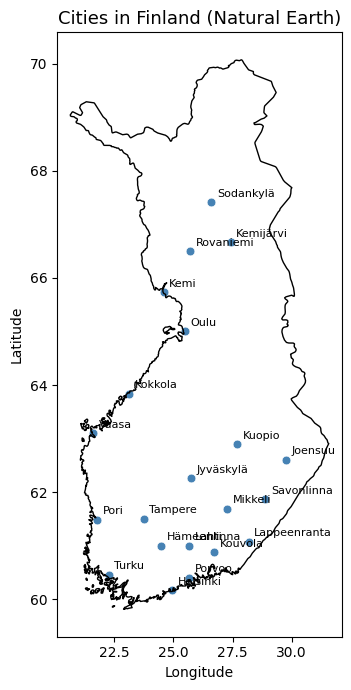
| name | pop_max | adm1name | latitude | longitude | |
|---|---|---|---|---|---|
| 0 | Hämeenlinna | 47261 | Tavastia Proper | 60.996996 | 24.472000 |
| 1 | Kouvola | 31133 | Southern Finland | 60.876000 | 26.709004 |
| 2 | Mikkeli | 46550 | Southern Savonia | 61.689996 | 27.285004 |
| 3 | Savonlinna | 27353 | Southern Savonia | 61.866623 | 28.883343 |
| 4 | Pori | 76772 | Satakunta | 61.478895 | 21.774939 |
| 5 | Sodankylä | 8942 | Lapland | 67.417059 | 26.600020 |
| 6 | Jyväskylä | 98136 | Central Finland | 62.260346 | 25.749994 |
| 7 | Kuopio | 91900 | Eastern Finland | 62.894286 | 27.694940 |
| 8 | Lappeenranta | 59276 | South Karelia | 61.067059 | 28.183334 |
| 9 | Porvoo | 12242 | Eastern Uusimaa | 60.400356 | 25.666020 |
| 10 | Kemijärvi | 8883 | Lapland | 66.666666 | 27.416662 |
| 11 | Kokkola | 46714 | Western Finland | 63.833299 | 23.116666 |
| 12 | Lahti | 98826 | Päijänne Tavastia | 60.993860 | 25.664934 |
| 13 | Joensuu | 53388 | North Karelia | 62.599989 | 29.766648 |
| 14 | Turku | 175945 | Finland Proper | 60.453867 | 22.254962 |
| 15 | Kemi | 22641 | Lapland | 65.733312 | 24.581693 |
| 16 | Oulu | 136752 | Northern Ostrobothnia | 64.999998 | 25.470011 |
| 17 | Rovaniemi | 34781 | Lapland | 66.500035 | 25.715939 |
| 18 | Vaasa | 57014 | Western Finland | 63.099984 | 21.600015 |
| 19 | Tampere | 259279 | Pirkanmaa | 61.500005 | 23.750013 |
| 20 | Helsinki | 1115000 | Southern Finland | 60.177509 | 24.932181 |
3. Static map with Matplotlib + GeoPandas#
In this section, we draw Finland’s country border and overlay populated places. City names are added as annotations to make the map easier to read.
import matplotlib.pyplot as plt

fig, ax = plt.subplots(figsize=(5, 7))

# Draw Finland's border
finland_border = countries[countries["ADM0_A3"] == "FIN"]
finland_border.boundary.plot(ax=ax, color="black", linewidth=1)

finland.plot(
    ax=ax,
    color="steelblue",
    markersize=40,
    edgecolor="white",
    linewidth=0.5,
)

# Label each city
for _, row in finland.iterrows():
    ax.annotate(
        row["name"],
        xy=(row.geometry.x, row.geometry.y),
        xytext=(4, 4),
        textcoords="offset points",
        fontsize=8,
    )

ax.set_title("Cities in Finland (Natural Earth)", fontsize=13)
ax.set_xlabel("Longitude")
ax.set_ylabel("Latitude")
plt.tight_layout()
plt.show()
4. Interactive map with Folium#
Finally, we create a web map centered on Austria. We add the Austria border as a GeoJSON layer and draw one circle marker per Austrian city with a popup and tooltip.
import folium

# Create a map centred on Austria using CartoDB Positron as the only basemap
m = folium.Map(
    location=[47.5, 14.5],
    zoom_start=7,
    tiles="CartoDB positron",
)

# Add Austria border as a GeoJSON layer
austria_border = countries[countries["ADM0_A3"] == "AUT"]
folium.GeoJson(
    data=austria_border.__geo_interface__,
    style_function=lambda _: {
        "fillColor": "lightyellow",
        "color": "black",
        "weight": 2,
        "fillOpacity": 0.25,
    },
    name="Austria border",
).add_to(m)

# Add one CircleMarker per Austrian city
for _, row in austria.iterrows():
    is_capital = row["name"] == "Vienna"
    folium.CircleMarker(
        location=[row.geometry.y, row.geometry.x],
        radius=6 if is_capital else 4,
        color="steelblue",
        fill=True,
        fill_opacity=0.8,
        tooltip=row["name"],
    ).add_to(m)

# Fit view to Austria boundary
bounds = austria_border.total_bounds  # minx, miny, maxx, maxy
m.fit_bounds([[bounds[1], bounds[0]], [bounds[3], bounds[2]]])

m